QUICK OVERVIEW

Before you start customizing, it helps to know your style. In this module, you’ll learn how to define your design vibe—clean or wild—use filters to narrow your options, open multiple designs at once to compare side by side, and save your favorites so you can build faster and more confidently. No more second-guessing your wrap design. 
STEP 1 – HAVE A GENERAL IDEA OF THE VIBE

Having a general idea of the vibe that you want will knock off a bunch of time during the design stage.

Questions to ask yourself:

  • Do I want CRAZY/WILD
  • Do I want SIMPLE/CLEAN

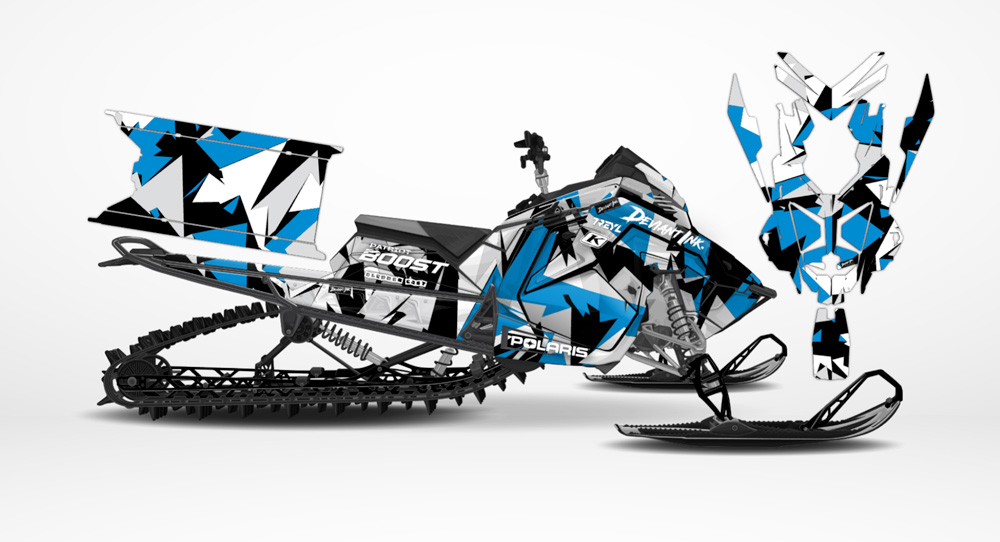
You can create a CRAZY/WILD good-looking design.

Another question to ask yourself:
 
  • Do I want to add any logos?
 
We find it can be a little easier incorporating logos into your wrap design when you have a simpler design with more open areas where logos can be positioned with a clean background.
 
Absolutely not a requirement, but tends to be a bit easier to figure out.

STEP 2 – USE THE DESIGN SORTING FILTERS

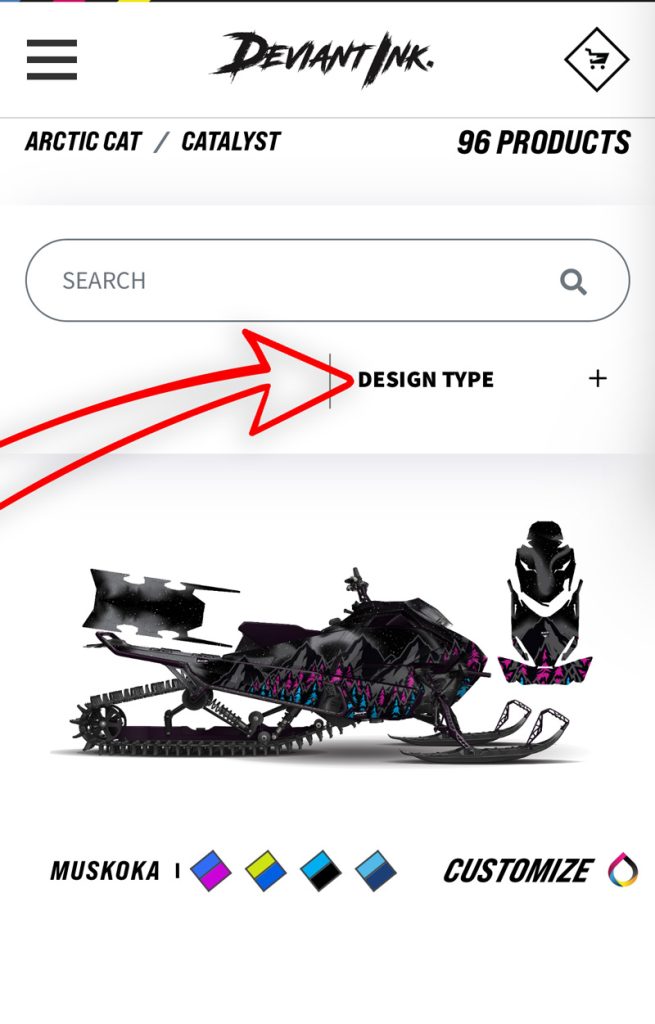
You’ll notice on both the desktop and mobile phone version of DeviantInk.com that there is a “DESIGN TYPE” filter on every wrap catalog page.

See the screenshot below from the mobile version of our website:

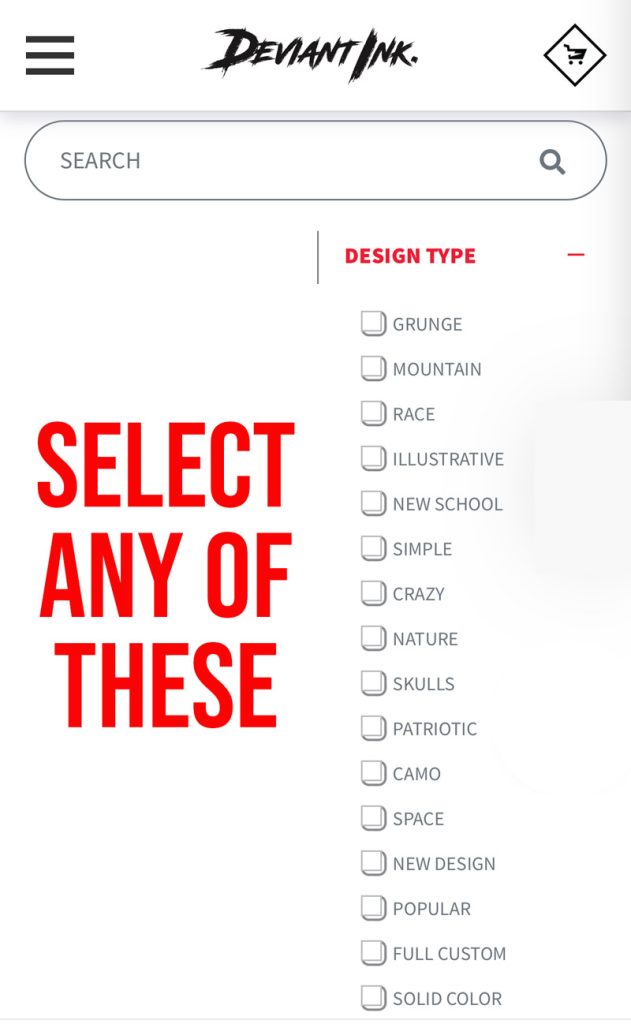
Once you click on the design type filter, you can select as many filter options as you’d like to narrow down the designs you see.

See the screenshot below from the mobile version of our website:

STEP 3 – OPEN UP A BUNCH OF DESIGNS AT ONCE

Get familiar with opening up favorable designs in new browser tabs.

Start by scrolling through our design catalog, and open any designs that catch your eye in a new tab.

Here’s how to do that on a desktop computer:

  • For a MAC = “command + click”
  • For a PC = “contrl + click”


Here’s how to do that on a mobile phone:

You can typically press and hold on the design long enough for the mobile browser options menu to show up on the screen. One of those options should be “open in new tab”.

The reason we recommend doing this, is because it allows you to cycle through a bunch of designs at the same time and hopefully narrow down your options quicker. 🙂

STEP 4 – SAVE YOUR DESIGNS TO YOUR ACCOUNT

Taking it back to module one, make sure you have logged into your free account before you start browsing and customizing designs.

This will allow you to save any of your new wrap builds to your account. This way you don’t forget about design builds and can always jump back into a build later on.

AND THAT’S A WRAP WITH MODULE 3!


Module 3 offered a quick guide on how to effectively narrow down the design vibe you’re aiming for.


Here’s what to look forward to in module 4…
 

  • Discover tips and tricks for perfect logo placement on your machine!